New updates to the Stanford AI Playground rolled out in July, with several features and tools that can inform or boost your work.
Let’s take a look at what's new and some ideas for making the most of these tools.
AI Agents: A growing frontier
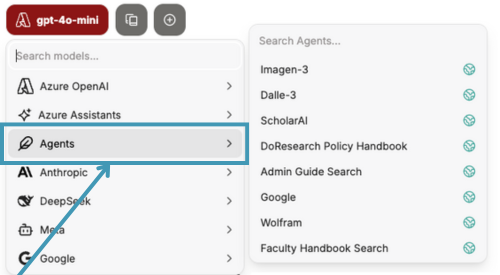
The AI Playground now formalizes certain tools with agentic capabilities as agents. These are task-specific modules that can access external tools or data sources.
For example, Imagen-3, Dall-E 3, Google (web search), ScholarAI, and Wolfram, which were previously available as plugins, are now listed in the “Agents” group.
And now we have three new AI agents ready to assist with Stanford-specific queries: Admin Guide Search, DoResearch Policy Guide, and Faculty Handbook Search. These agents demonstrate the power of Retrieval-Augmented Generation (RAG) against specific knowledge bases.
Find more details on AI agents in the Quick Start Guide: 10. Try new features.
For your own use cases that might benefit from a custom agent, be sure to check out the AI API Gateway service.
New options support development, debugging, and decluttering
These new options in the AI Playground could also be especially useful:
- Artifacts with shadcn/ui: The Artifacts feature, which renders generated items like code, now has beta support for shadcn/ui. This allows you to generate and preview modern React UI components directly in the AI Playground interface, making it a powerful tool for rapid prototyping.
- To enable:
Go to Settings > Beta Features and toggle on both "Toggle Artifacts UI" and "Include shadcn/ui components instructions."
- To enable:
- "Open Thinking" (with DeepSeek models only): This feature causes the model to display its chain-of-thought (CoT) reasoning to “think out loud” and provide step-by-step reasoning for its responses. This can help you with troubleshooting and improving prompt engineering.
- To enable:
Go to Settings > Chat > Open Thinking Dropdown by Default.
- To enable:
- Temporary Chat: When using this mode, chats are not saved to your history and are deleted after 30 days, making them ideal for one-off tests or ideation without cluttering your workspace.
Learn more about each of these in the Quick Start Guide: 10. Try new features.
Along with these updates, the AI Playground now has improved accessibility labels and styling for buttons, more accessible search, improved keyboard focus and screen reader support, and more consistent visual design across the platform. Find more detail in the AI Playground Release Notes.
High-value IT use cases
Not sure what you might try? Here are a few tasks our IT community can explore in the AI Playground:
- Generate scripts
- Debug code
- Improve script/code approaches
- Interpret errors
- Analyze logs
- Generate technical documentation
- Write or check SQL queries
- Create prototypes
- Improve project communication
For help finding a good match between a specific task and the appropriate model, explore a comparison of models and versions in the Quick Start Guide: 3. Find and explore models.
Please remember: Do not use high-risk data in your attachments or prompts in the AI Playground (even with Temporary Chat). And always verify output from the AI Playground yourself, rather than trust it implicitly. Visit Responsible AI to learn more about these best practices.
More help
- To get started, launch the AI Playground.
- For detailed information, use the AI Playground Quick Start Guide and FAQs.
- To share and learn from the Stanford community on the AI Playground, join the #ai-playground Slack channel.
- For technical questions or support, submit a Help request.
- To share your feedback with the team, use the feedback form.